Connect Claude Desktop
One JSON file, copy-paste-ready. Five minutes from "Claude can't reach anything" to "Claude can call your stack."
Claude Desktop reads MCP servers from a single config file. Drop the Nomos block in, restart Claude, and every Nomos-connected SaaS becomes a callable tool.
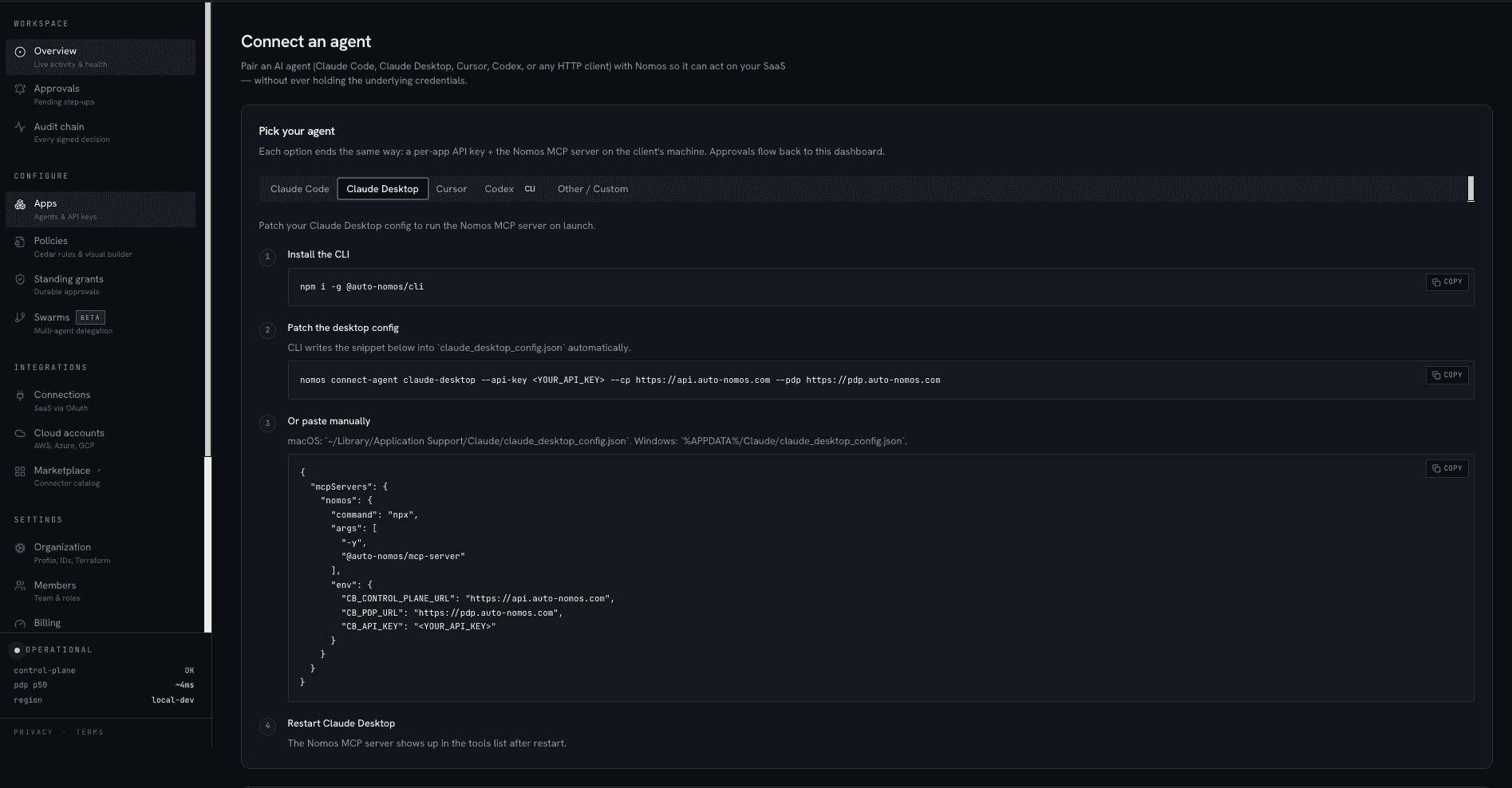
The dashboard's Connect an agent page (/app/connect)
has a Claude Desktop tab: install the CLI and let it patch
claude_desktop_config.json for you, or copy the ready-made JSON block, then restart —
your App's API key and URLs are already baked in.
Before you start
- Claude Desktop 1.0+ (macOS, Windows, or Linux).
- A Nomos App with an API key (Get started → Register your first App).
- At least one Connection.
Where the config lives
| Platform | Path |
|---|---|
| macOS | ~/Library/Application Support/Claude/claude_desktop_config.json |
| Windows | %APPDATA%\Claude\claude_desktop_config.json |
| Linux | ~/.config/Claude/claude_desktop_config.json |
File doesn't exist yet?
Create it. Claude Desktop won't auto-create the file but it reads it on every launch if it's there.
The config block
{
  "mcpServers": {
    "nomos": {
      "command": "npx",
      "args": ["-y", "@auto-nomos/mcp-server@latest"],
      "env": {
        "NOMOS_CONTROL_URL": "https://control.auto-nomos.com",
        "NOMOS_API_KEY": "nk_live_…",
        "NOMOS_PDP_URL": "https://pdp.auto-nomos.com"
      }
    }
  }
}
If you already have other MCP servers, merge under the existing mcpServers object.

Step-by-step
- 1Open the config file
On macOS:
bash open -a "TextEdit" ~/Library/Application\ Support/Claude/claude_desktop_config.jsonOn Windows: open the file with Notepad. On Linux:
xdg-open ~/.config/Claude/claude_desktop_config.json. - 2Paste the Nomos block
Drop the JSON above into the file. If the file already had
mcpServers, add thenomoskey alongside the existing ones — don't replace. Save. - 3Restart Claude Desktop
Quit Claude (cmd-Q / right-click tray → Quit). Re-open. On launch, Claude spawns the MCP server subprocess and registers its tools.
- 4Verify in the tools picker
In a chat, click the wrench icon. You'll see Nomos-provided tools like
github_issue_list,slack_message_post,linear_issue_create. The list reflects your active Connections + your App's policy.
One tool per allowed command, scoped by your App's policy. - 5Ask Claude something that needs a tool
"Read the README of acme/app." Claude picks
github_file_get, the MCP server asks Nomos for a UCAN, the PDP allows, GitHub returns the file. Claude reads it.
Claude shows the tool name + arguments; the result is inlined in the response.
Verify it worked
- Claude Desktop's tools picker lists Nomos tools (refresh after restart if not).
- A test call ("list my GitHub repos") returns real data.
/app/auditshows one row per tool call.
Approval flow on macOS
Step-ups deliver via:
- Web push to your dashboard browser (if open).
- System notification if you've enrolled the macOS notification permission.
- Email if neither of the above are wired.
- Telegram if you've set up the Telegram bot.
You tap, your passkey signs, Claude Desktop pauses for ~3 seconds while the cosigner UCAN lands, then the tool returns the result.
Common failures
Tools picker doesn't show Nomos tools after restart+
Open ~/Library/Logs/Claude/mcp-server-nomos.log (macOS) for the spawn error. Usually NOMOS_API_KEY isn't set or has whitespace from copy-paste.Tools show but error 'no PDP endpoint'+
NOMOS_PDP_URL missing. Add it to the env block. Hosted: https://pdp.auto-nomos.com. Self-hosted: whatever you put in your Terraform output.MCP server reports 'permission denied' on first call+
App has no policy attached. Open /app/agents/<id> → Default policy → assign github:read-only as a sanity check.