Register your first App
Create an identity for your agent and issue an API key. The key is visible exactly once.
An App is one agent's identity inside your organization. It has a DID (used to sign UCANs), an optional Cedar policy, zero or more API keys, and a mode flag that decides how the agent is allowed to ask for delegations.
Before you start
- At least one Connection (Get started → Connect your first provider).
- An idea of what this agent is for. The App name shows up in audit logs forever — name it accurately.
Prefer the CLI?
cb apps create --name "…" --mode dynamic issues the same App; then
cb apps keys create <app-id> prints the API key (visible once). See the
Quickstart for the
side-by-side CLI / MCP / SDK paths.
Step-by-step
- 1Open Apps
Left nav → Apps. Empty state shows a "Create App" CTA.

Each row will be one agent identity. - 2Create the App
Click Create App. Fill in:
- Name — what shows in audit logs. e.g.
triage-bot,prod-codegen,pr-reviewer. - Mode —
static(default) means the agent calls fixed commands;dynamicmeans the agent narrates intents at runtime. Start static. - Default policy — skip for now; we'll attach one in the next page.
Save. The app row appears.

Pick a name you'll recognize in audit logs six months from now. - Name — what shows in audit logs. e.g.
- 3Issue an API key
Click into the App's detail page. API keys section → Issue key. Pick:
- Label —
local-dev,prod,cursor-laptop. So you can revoke per-machine. - Role —
memberfor read flows,agent_managerfor runtime,adminonly if the agent provisions other agents (rare).

One key per machine, per environment. Easier to revoke. Click Issue. A modal shows the key one time only.

Copy this now. Nomos never shows it again. - Label —
- 4Stash the key
Drop it in your
.env, your secret manager, or your laptop keychain:bash export NOMOS_API_KEY="nk_live_…" export NOMOS_CONTROL_URL="https://control.auto-nomos.com"These two env vars are all the SDK and MCP server need.
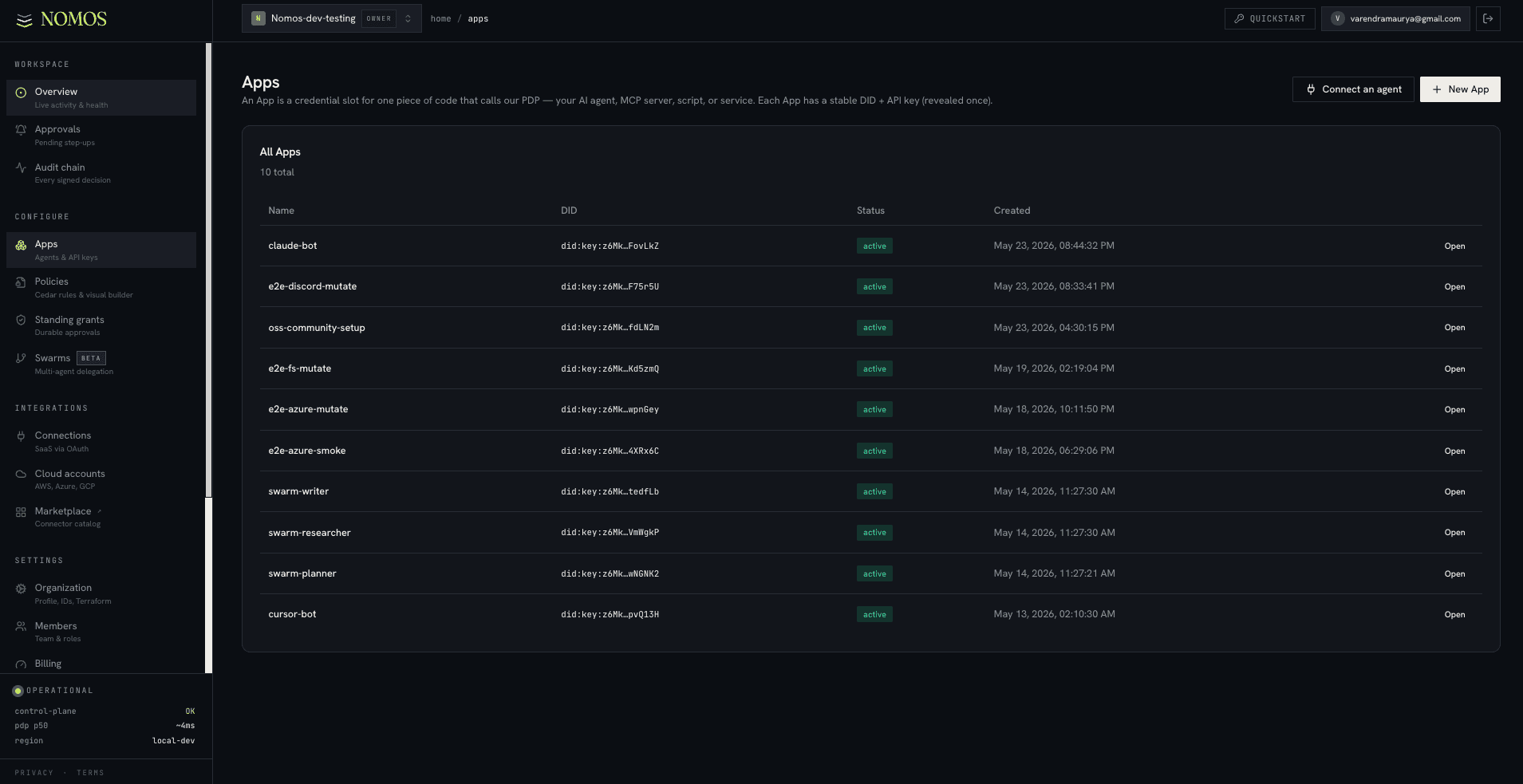
Back on the Apps list you'll see every agent identity in the org — one row each, with
its Name, ID, Status (active), and Created date. New app and
Connect an agent sit top-right.
Verify it worked
- The Apps page shows your new app with status
active. - The detail page's API keys section lists the key with the label you chose, the role, and "last used: never."
- Trying to call the dashboard's API-key reveal route a second time fails — the plaintext key was shown once and is now hashed at rest.
If you lose the key, issue a new one.
Nomos doesn't store the plaintext. Revoke the lost key from the same screen, then re-issue. Existing UCANs that the lost key already minted remain valid until they expire — revoke the App's envelope from the Apps page to kill those too.
What the key actually authorizes
The API key authenticates the call to the control plane. It is not the credential your agent presents to the SaaS API.
Flow:
- Agent → control plane:
Authorization: Bearer <api-key>plus an authorize request. - Control plane checks: does this API key belong to an active App, with a policy that allows this command? If yes, mint a UCAN.
- Agent → PDP:
Authorization: Bearer <ucan>plus the request. - PDP swaps UCAN for the real OAuth token (decrypted just-in-time) and proxies upstream.
The API key never leaves your infrastructure → control plane edge. The UCAN never leaves your infrastructure → PDP edge. The OAuth token never leaves the broker.